

- Photo layout app · grids, splits, carousels
Photo Layout App for iPhone and iPad
Arrange several photos into one designed frame: a grid, a split, a mosaic or a seamless carousel, with adjustable dividers and borders.
 Free to download. For iPhone, iPad and Apple-silicon Macs.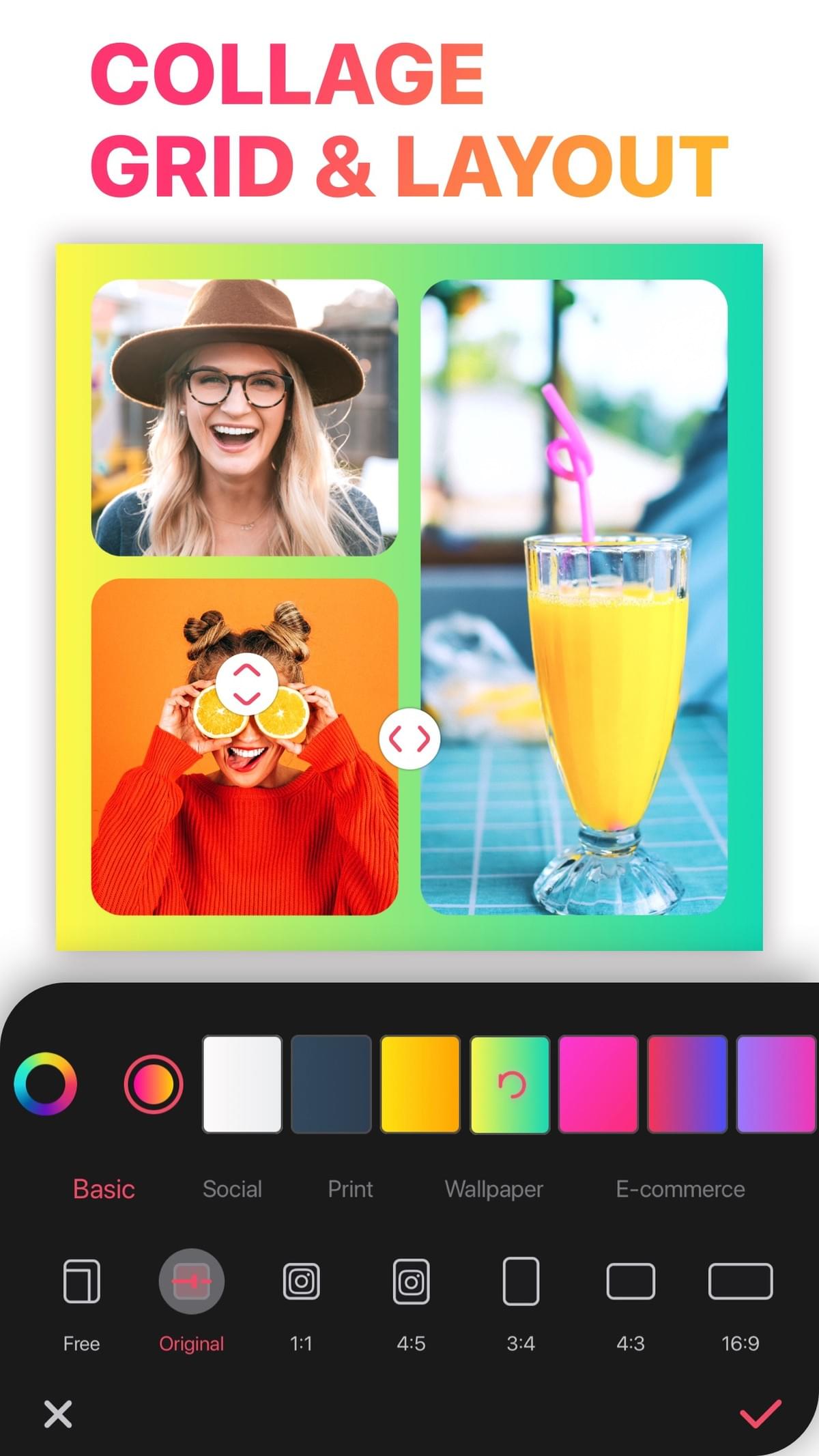
- 4.8 Average App Store rating
- 178K+Ratings on the US App Store
- No watermarkOn every export, free or VIP
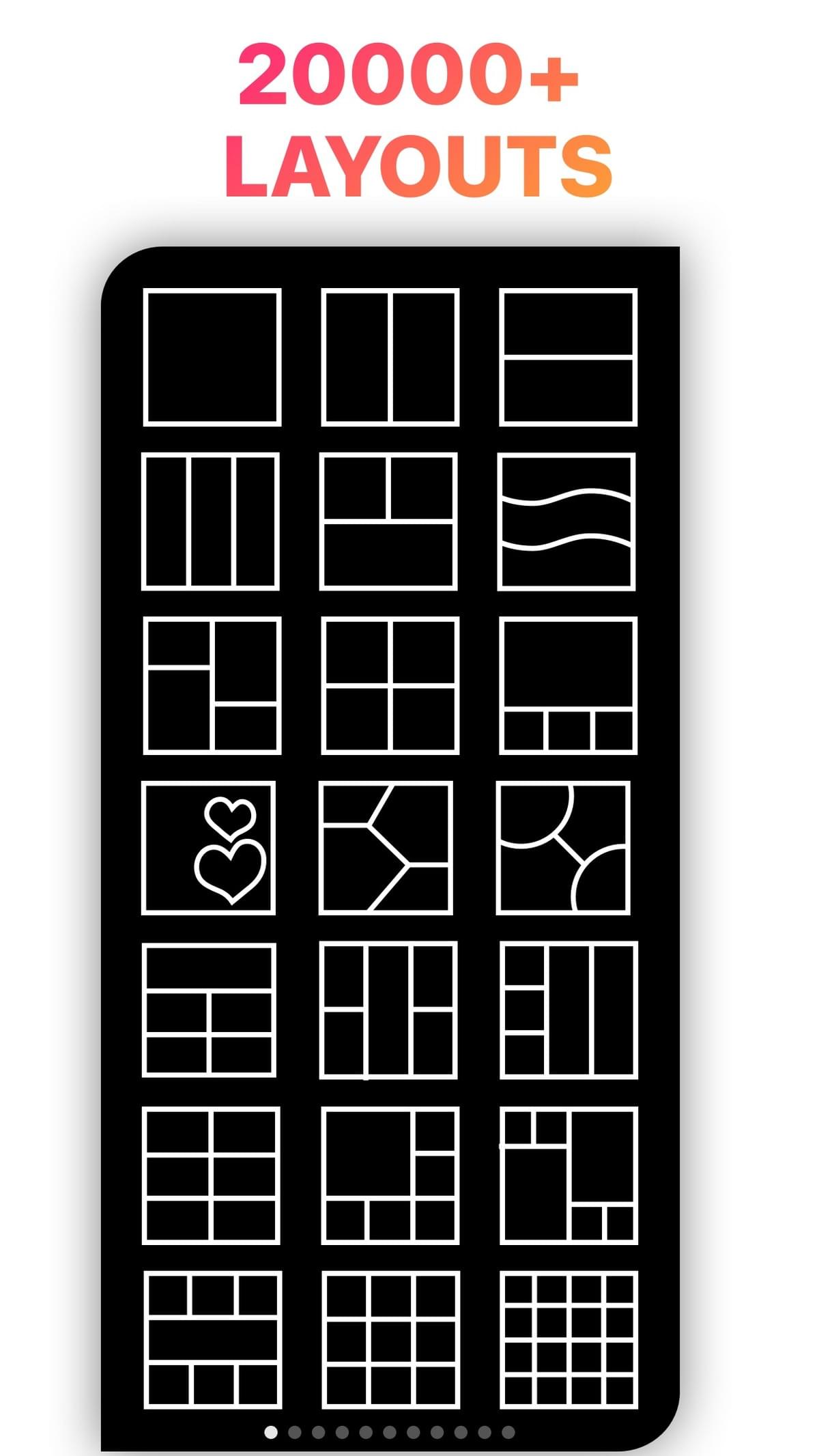
- 20,000+Layouts in the app
Layout typesTypes of photo layouts
- Splits (2 photos): side by side or top and bottom, for before/after shots and comparisons.
- Feature layouts (3–5 photos): one large hero photo with smaller supporting shots.
- Grids (4, 6, 9, 12…): equal cells, clean and calm.
- Mosaics: cells of mixed sizes for many photos.
- Seamless carousels: one design split across several slides, reading as a panorama when people swipe.
- Freestyle: no cells. You place photos anywhere.
How toHow to create a photo layout in LiveCollage
Open LiveCollage and tap Grid.
Select your photos. Layouts that fit that number appear.
Tap a layout to preview it with your own photos.
Drag the dividers to resize cells. Pinch inside a cell to zoom and reposition.
Set the border width, corner radius and background.
Choose the ratio: 1:1, 4:5, 9:16 or a print ratio.
Save to Photos or share.
Design principlesLayout tips from designers
Hierarchy and rhythm
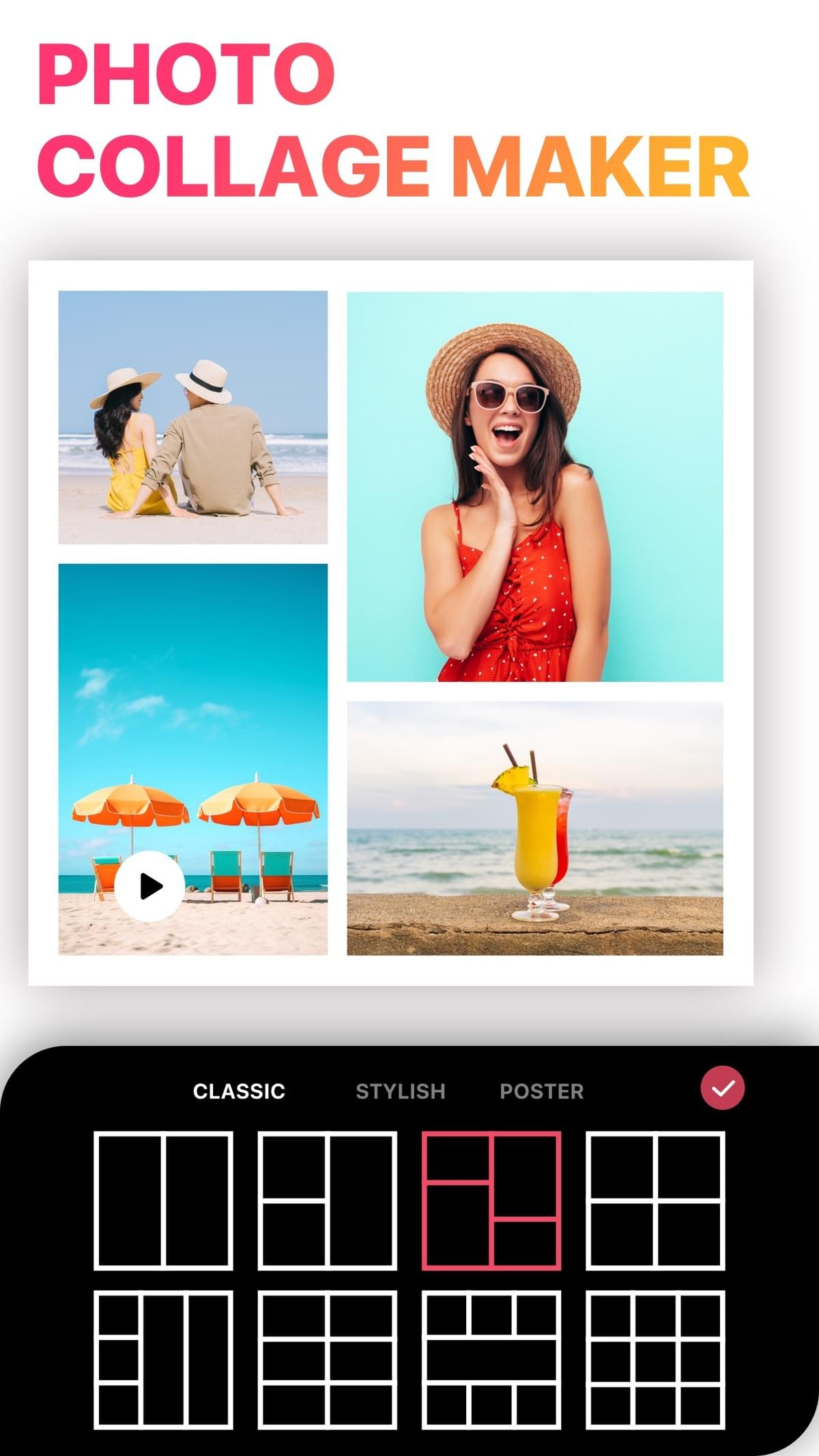
One photo should clearly lead. Alternate close-ups and wide shots.
Alignment and white space
Keep horizons and eye lines roughly level. Borders separate busy photos; no borders suit similar-toned sets.
Ratio first
Decide where it will be posted before arranging, so nothing important is cropped.
CarouselsPlanning a carousel layout
For multi-slide posts, plan each slide as one cell in a wide layout. That way objects that cross the boundary line up when people swipe. Check the platform's current carousel ratio before exporting.
Every platformPhoto layout for every platform
Destination Ratio to choose Layout tip Square feed post 1:1 2×2 or 3×3 grids Portrait feed post 4:5 Feature layout with a tall hero Story / reel cover 9:16 Vertical stack, keep text in the middle Phone wallpaper 9:16 Low-detail photos so icons stay readable Print Print ratio Thin borders, high-quality export TerminologyPhoto layout app vs. collage maker
They are mostly the same thing. “Layout” usually refers to the structure, the grid or the split, while “collage” is the finished image. LiveCollage covers both, plus freestyle collages and video layouts. See the collage maker guide.
Note: “layout” is used here as a general design term. LiveCollage is not affiliated with any other app of that name.
No surprisesWhat's free and what's VIP
VIP is optional and starts with a 3-day free trial. Exports have no watermark, free or VIP.
Feature Free VIP Download and use the app Yes Yes Grid layouts Many free All Freestyle canvas Many free Yes Templates Many free templates All premium templates Text and fonts Many free All fonts and styles Stickers and backgrounds Many free All packs Video collage Many free Yes AI tools 45 free credits Credits Watermark on export No No Ads Only on the save screen — Prices vary by region and are shown in the app before you subscribe. To cancel: iPhone Settings → your name → Subscriptions → LiveCollage. Deleting the app does not cancel a subscription.
FAQFrequently asked questions
What's the best free photo layout app for iPhone?
Simple, free layout apps are fine for quick grids. LiveCollage is free to download and adds many more layouts, freestyle, templates, text and video. It's rated 4.8 out of 5 from more than 178,000 ratings.
Can I change the layout after adding photos?
Yes. Tap another layout and your photos move into it.
Can I adjust the size of each cell?
Yes. Drag the dividers between cells.
Can I make a layout with videos?
Yes. LiveCollage supports video collages.
Does it work on iPad?
Yes. It runs on iPhone, iPad and Apple-silicon Macs.
Lay out your photos the way you see them
20,000+ layouts, adjustable cells and the right ratio for every platform.
Available for iPhone, iPad and Apple-silicon Macs. Not available on Android or as a web editor.