

- Photo collage · iPhone & iPad
Make a Photo Collage on iPhone
Choose a grid layout, select your photos, then adjust the borders, ratio and background and save. It also works on iPad and Apple-silicon Macs.
 Free to download. For iPhone, iPad and Apple-silicon Macs.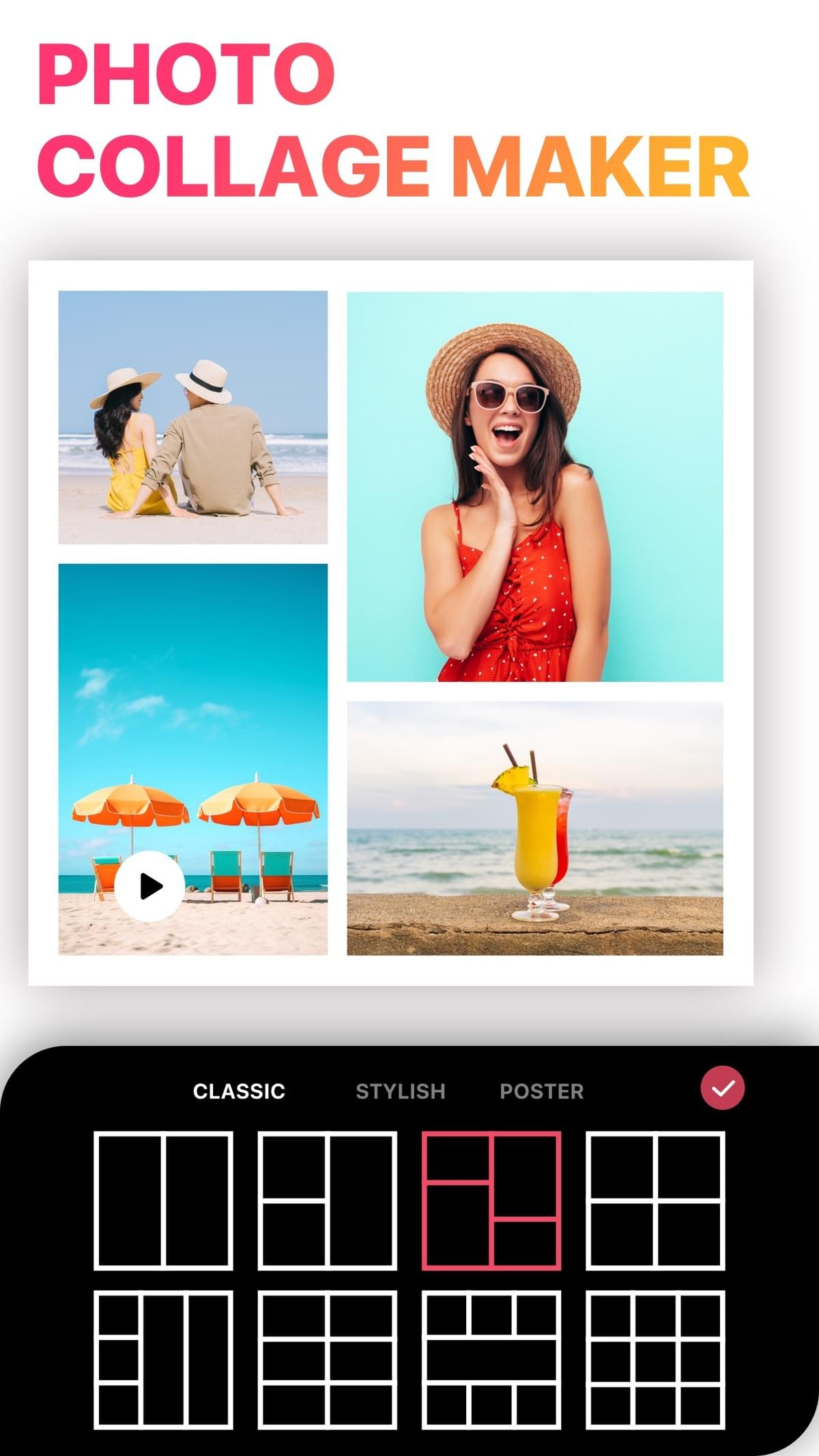
- 4.8 Average App Store rating
- 178K+Ratings on the US App Store
- No watermarkOn every export, free or VIP
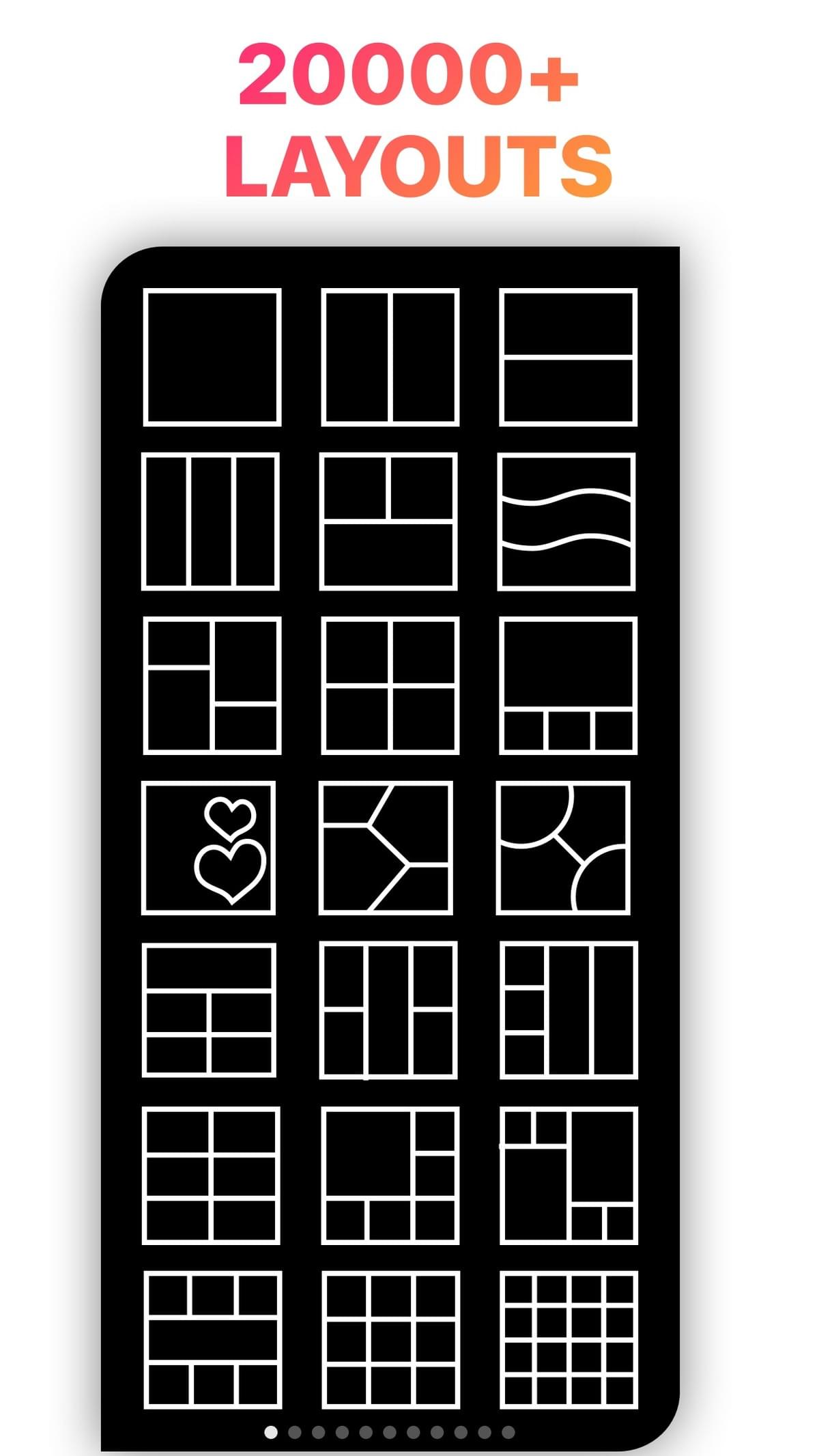
- 20,000+Layouts in the app
What is a photo collage?Two styles, one app
A photo collage combines several photos into a single image, to tell a short story, post many photos at once, keep a print-ready memory or design a card.
Grid collages
Photos sit in neat cells, like a 2×2, 3×3 or an asymmetric mosaic. Clean, quick, and great for social posts.
Freestyle collages
Photos overlap, tilt and mix with stickers and text, more like a scrapbook or a moodboard.
Templates for occasions
Ready-made designs for trips, birthdays, a baby's first year, before-and-after shots and cards.
Step by stepHow to make a photo collage in LiveCollage
Install and open LiveCollage. Download it free from the App Store.
Choose a starting point. Grid for a classic layout, Freestyle for a free canvas, or Templates.
Pick your photos. The app suggests layouts that fit how many you picked.
Choose a layout. Browse 20,000+ layouts and switch at any time; your photos stay in place.
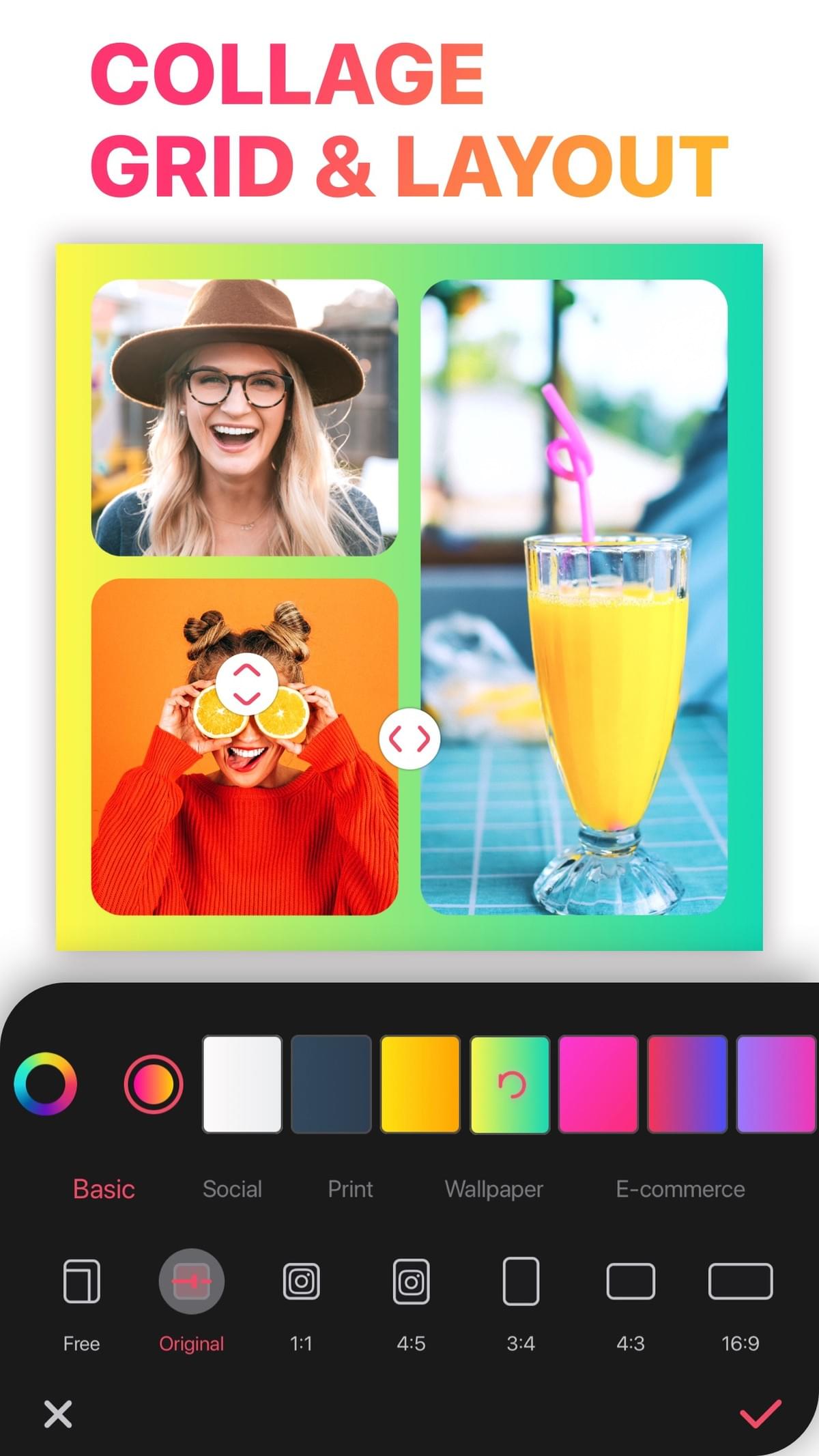
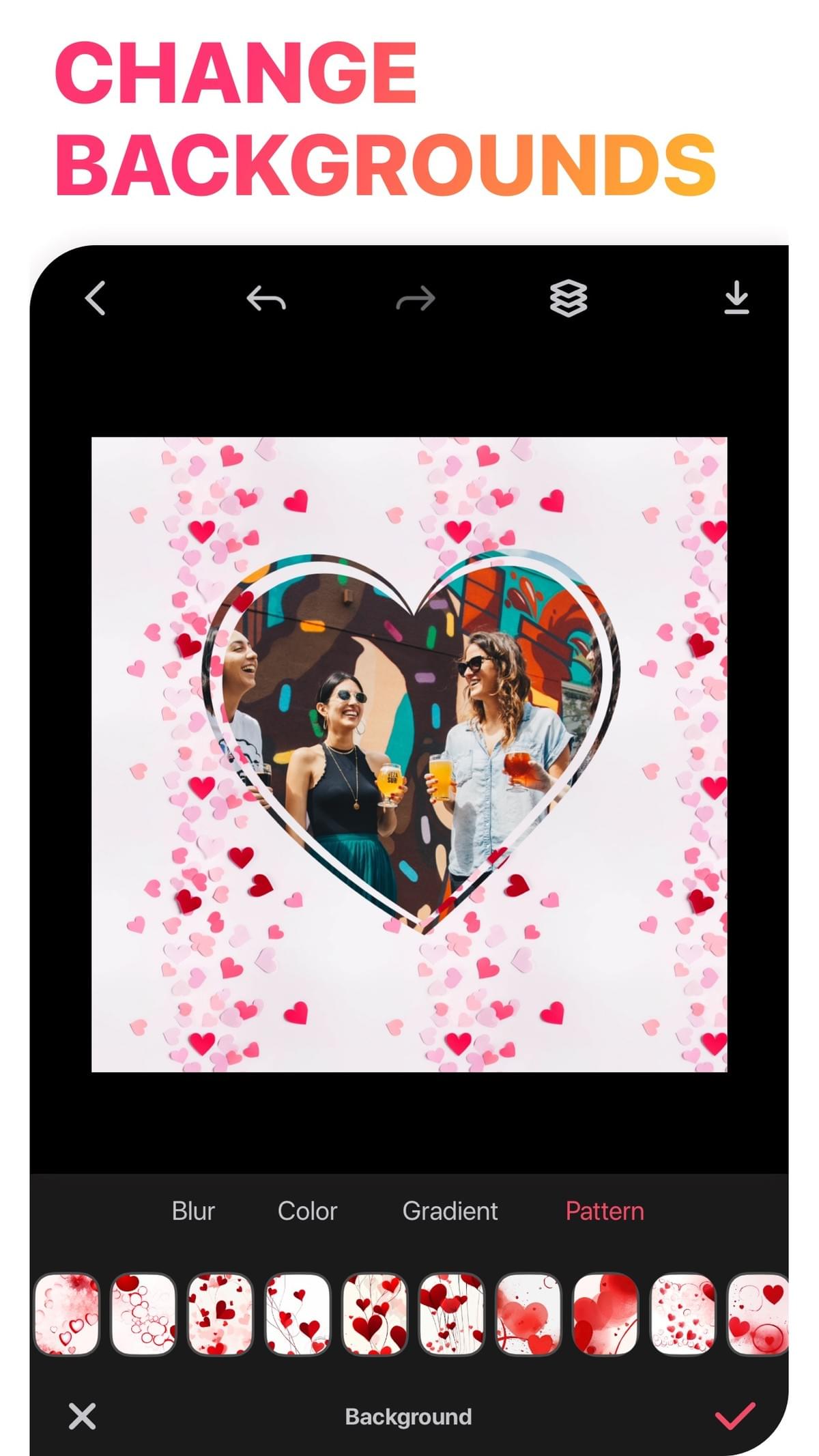
Fine-tune. Drag dividers, pinch to zoom, swap photos, and adjust border width, corner radius and background.
Pick a size. 1:1 square, 4:5 portrait, 9:16 stories and wallpapers, or a print ratio.
Add text and stickers. A caption, date or title, with fonts and text styles.
Save and share. Export to Photos at high quality, or share to messages and social apps.
TipsTips for a better photo collage
- Lead with your best shot. Give it the largest cell; smaller cells add context.
- Limit the color story. Similar tones look intentional; a light filter across all photos helps.
- Use borders on purpose. Thin white feels clean, none feels seamless, thick colored feels playful.
- Match the destination. Choose the ratio before you fine-tune so nothing gets cropped.
- Odd numbers feel dynamic. Three, five or seven photos in an asymmetric layout look natural.
- Print check. Export at the highest quality and keep faces away from cell edges.
IdeasPhoto collage ideas
- A trip recap: a wide landscape on top and four detail shots below
- Birthday: a photo from every year, with the age in big text
- Baby milestones: one photo a month in a 3×4 grid
- Before and after: a two-cell split with a thin divider
- Food diary, pet days, outfit of the week, a moodboard for a room
- A holiday card: a family photo plus a seasonal template
No surprisesWhat's free and what's VIP
VIP is optional and starts with a 3-day free trial. Exports have no watermark, free or VIP.
Feature Free VIP Download and use the app Yes Yes Grid layouts Many free All Freestyle canvas Many free Yes Templates Many free templates All premium templates Text and fonts Many free All fonts and styles Stickers and backgrounds Many free All packs Video collage Many free Yes AI tools 45 free credits Credits Watermark on export No No Ads Only on the save screen — Prices vary by region and are shown in the app before you subscribe. To cancel: iPhone Settings → your name → Subscriptions → LiveCollage. Deleting the app does not cancel a subscription.
Photos and clipsPhoto collage vs. video collage
When some of your moments are clips, use a video collage instead. LiveCollage lets you put videos and photos in the same layout, add music, trim and change speed, then export a video. See video collages and collage ideas.
FAQFrequently asked questions
What is the best app to make a photo collage on iPhone?
It depends on what you need. Dedicated apps like LiveCollage add layouts, borders, templates, text and video collages. LiveCollage is free to download and rated 4.8 out of 5 from more than 178,000 ratings.
How do I make a photo collage without cropping my photos?
Choose a layout where each cell's shape is close to its photo's shape, or use Freestyle, where you can place and size each photo freely.
Can I print my photo collage?
Yes. Choose a print ratio and export at the highest quality.
Can I make a photo collage on iPad or Mac?
Yes. LiveCollage runs on iPad and on Macs with Apple silicon.
How many photos can I use?
You can use 20+ photos in one collage.
Turn your photos into one collage
Grid, freestyle or template: pick a starting point and save in minutes.
Available for iPhone, iPad and Apple-silicon Macs. Not available on Android or as a web editor.