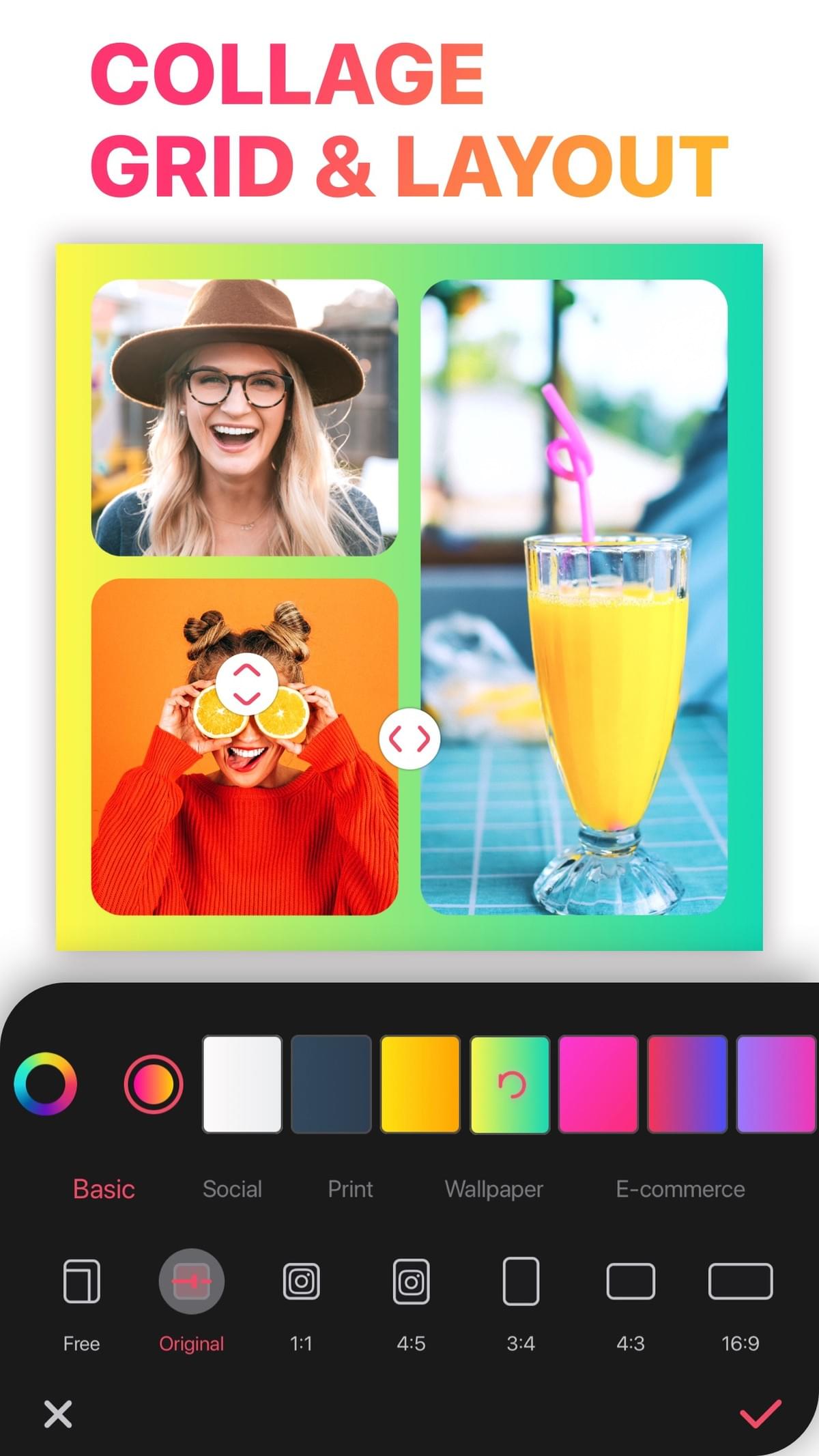
- Free photo collage · no watermark
Make a Free Photo Collage on iPhone
Tap Grid, pick a free layout, add your photos, adjust the borders and tap Save. You don't need to subscribe, and there's no watermark.
 Free to download. For iPhone, iPad and Apple-silicon Macs.
- 4.8 Average App Store rating
- 178K+Ratings on the US App Store
- No watermarkOn every export, free or VIP
- 20,000+Layouts in the app
60 secondsStep by step: a free photo collage in 60 seconds
Get the app. Download LiveCollage free from the App Store.
Tap Grid. The quickest way to combine photos.
Select photos. Choose 2 to 20+ photos.
Pick a free layout. Many of the 20,000+ layouts are free; premium ones are marked in the app.
Set the size. 1:1 square post, 4:5 portrait post, 9:16 story or wallpaper, or a print ratio.
Style it. Adjust border width and corners, and pick a background color.
Add a caption. Tap Text and type a title or date.
Save. The collage goes to your Photos library.
Pick a layoutWhich layout should you use?
Photos Good free layout Best for 2 Side-by-side or top/bottom split Before/after, couples 3 One big plus two small A hero shot with details 4 2×2 grid Weekend recap 6 2×3 or 3×2 Event highlights 9 3×3 grid Year in review, monthly baby photos 10+ Mosaic Big albums Still freeMake it look designed
- Use one filter on all photos so the tones match.
- Keep borders consistent: either none or a thin white border.
- Leave breathing room. Fewer, better photos beat a crowded grid.
- Put faces away from cell edges.
- For a story, leave space at the top and bottom for app UI.
Avoid theseCommon mistakes with free photo collages
- Too many photos. Nine strong photos beat twenty weak ones.
- Mixed orientations in equal cells. Pick a layout whose cells match your photos.
- Low-resolution exports. Choose the highest quality when you save for print.
- Busy backgrounds. A solid or subtle background keeps the focus on your photos.
- Forgetting the platform. Stories crop the top and bottom, and feed posts favor 4:5.
PrintFree photo collage for print
Choose a print ratio before you arrange photos, export at the highest quality, and preview at full screen to check for crops.
No surprisesWhat's free and what's VIP
VIP is optional and starts with a 3-day free trial. Exports have no watermark, free or VIP.
Feature Free VIP Download and use the app Yes Yes Grid layouts Many free All Freestyle canvas Many free Yes Templates Many free templates All premium templates Text and fonts Many free All fonts and styles Stickers and backgrounds Many free All packs Video collage Many free Yes AI tools 45 free credits Credits Watermark on export No No Ads Only on the save screen — Prices vary by region and are shown in the app before you subscribe. To cancel: iPhone Settings → your name → Subscriptions → LiveCollage. Deleting the app does not cancel a subscription.
AlternativesOther ways to make a free photo collage
- Built-in photo apps have a basic collage tool.
- Browser collage tools need no install, but most are photo-only.
- LiveCollage adds freestyle collages, templates, text styles and video collages, all in an iPhone app.
FAQFrequently asked questions
How do I make a photo collage for free on my iPhone?
Install a free collage app such as LiveCollage, choose a grid layout, add your photos and save. The steps are above.
Is there a free photo collage app without a watermark?
Yes. LiveCollage is free to download and exports have no watermark.
Can I make a free photo collage with 9 photos?
Yes. Pick a 3×3 grid.
Can I add music?
Yes, in a video collage. Add a clip or switch to a video collage and pick a track.
Your free photo collage is a minute away
No subscription needed and no watermark on what you save.
Available for iPhone, iPad and Apple-silicon Macs. Not available on Android or as a web editor.